

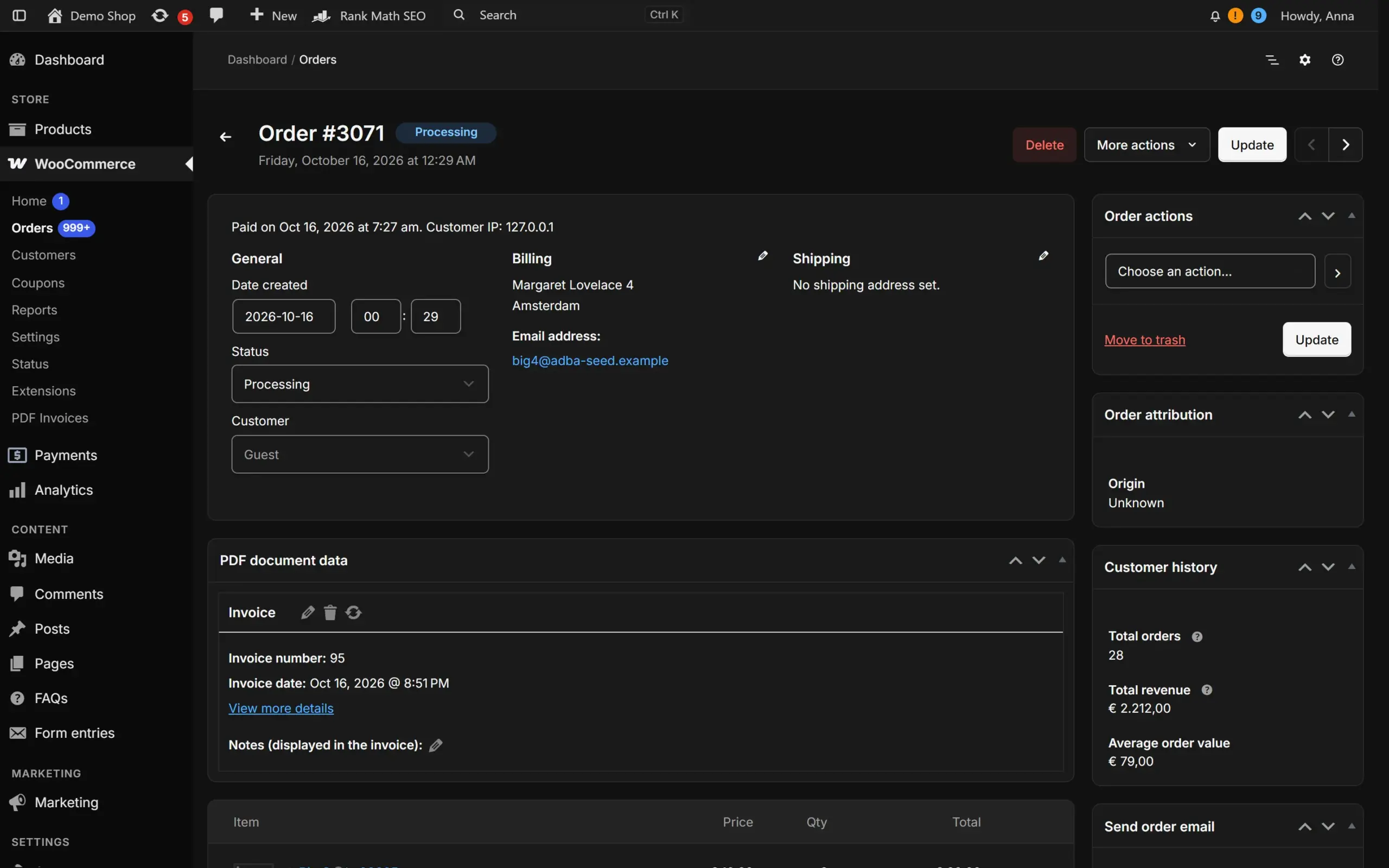
A calmer WooCommerce order screen: notes timeline and quick actions
Open a WooCommerce order that has been through a payment plugin, an invoice plugin, a shipping plugin and a CRM add-on. The WooCommerce order screen fills with boxes: order data, items, custom fields, three plugin panels, notes. You scroll to find the note field, scroll back for the address, and lose your place twice. Order handling is repetitive work, and a screen that makes you hunt costs minutes per day.
This post covers what a calmer order screen can change without breaking anything, using the order screen of Addofy as the example.
The rule: change the look, not the structure
Order screens are fragile. Payment, invoice and shipping plugins add their own boxes and fields, and they expect them where WooCommerce put them. Move a field in the page structure and one of them stops saving. So the approach of Addofy is deliberately modest: the native meta boxes, forms and the note form stay exactly where WooCommerce puts them. The layout and the notes timeline are done in CSS, and a couple of small additions are added next to them. Without JavaScript, the screen is plain WooCommerce.
That decision limits what is possible. It also means a plugin update on either side rarely breaks the order screen.
What changes on the order screen
A notes timeline. WooCommerce shows order notes as a list of boxes, which is hard to read as a story. The timeline layout turns them into a vertical sequence, so “payment received”, “tracking number added” and your own remark read as a story. Notes stay the normal WooCommerce notes, which means every email and plugin that reads them keeps working, and a new note shows right away.
A customer overview in the side column. Next to the order, a card sums up the customer’s earlier orders and spend, without opening another screen. For returning customers this is where you notice that this is the fifth order this year. The post on guest customers explains where that data comes from.
Previous and next order links. In the page header, two links move to the neighbouring order in the list you came from. Filter the list on Processing, open the first order, and the links walk through that filtered list. You stop going back to the list after every order. These links are added by a small script, so without JavaScript they are simply absent.
A quick note field at the top of the order screen, for a private note or a note to the customer. A short remark such as “customer called, ship on Friday” no longer requires scrolling down. The note goes through the normal Order notes box of WooCommerce, so its emails and hooks run as usual. The quick note is a setting you can switch on or off.
Copy buttons and Ctrl+S. Small copy buttons sit next to the order number, email address, phone number and address, and an address opens a map. The save bar from the Addofy edit screens applies here too: Ctrl+S (Cmd+S on a Mac) saves the form you are in, and leaving the page with unsaved changes asks first.
Quick actions without opening the order
Most order work is a small change: set the status, add a note, send the invoice again. For this, the order list has a Quick actions button next to the order preview. It lets you:
- change the status,
- add a note,
- or run an order action, such as the ones WooCommerce and your plugins register,
without opening the order. If you handle thirty orders in a morning, the saving is the difference between thirty page loads and none.
The same actions are available in the command palette that opens with Ctrl+K or Cmd+K: Set order status, Add order note. The post about the WooCommerce command palette shows how.
Taking the plugin boxes in hand
On a busy shop the order screen suffers most from plugin boxes you rarely need. Two tools help:
- Tabs per plugin. The meta boxes of plugins can be shown as tabs in one panel, per plugin, instead of as separate boxes in a long column.
- Visibility per role. A shop assistant who packs parcels does not need the CRM box. On the Visibility tab you hide it for that role. The post on hiding admin items per role explains the mechanics, including how hidden meta boxes keep saving because their fields stay in the form.
What it does not change
It does not change what WooCommerce stores. Orders, statuses and notes are the same records. It does not make a new order screen with its own logic, and it does not replace the WooCommerce order actions. If an order action from a plugin needs a particular box to be open, that box is still there.
On phones, the screen follows the same idea: order items become cards, and the primary action sits at the bottom within reach of the thumb.
Where to start
- Install the free AddoBase plugin and Addofy; the setup guide lists the steps.
- Open an order that has many notes and look at the timeline.
- Process five orders using only the previous and next links and the quick actions.
- If a plugin box is in your way, hide it for the roles that do not need it, rather than for everyone.
For the official description of what the WooCommerce order screen contains and how statuses work, the WooCommerce documentation on managing orders is the place to look.